
Why This is Important
As a business’ Oracle Cloud EPM environments evolve, there can be a need to switch data sources on the Reports. While this action has repercussions that will not be discussed in this post (i.e. how does the dimensionality differ from source to target? does a data mapping exist between the data sources? etc.), the end goal is the same. The Report’s data source must be switched to another one.
If you have more than a handful of NR Reports to change, it’s faster to complete this task en masse vs. one by one through each Report object’s Edit screen. Welcome to the library Action menu’s “Change Data Source” option, which I think works pretty great. It’s been around for years, but customers forget that it’s there or don’t understand the nuances of it.
Side note: for whatever reason, it’s still difficult to see what data sources each Report belongs to. I wish there were a screen that showed you all Reports and their respective NR data source names in one view. I’ve logged an enhancement request here in case anyone wants to upvote it and get this going with the Oracle NR development team.
Regardless, changing the data source en masse is actually an easy process and has some built-in intelligence to prevent human error.
What You Need to Know in Advance
To do this, you must have the appropriate rights. While a quick web search did not yield exact documentation on this, I believe you must have Administrator rights in order to do complete this particular task.
In addition, you should understand that all data sources in your Reports will be listed for change, including those attached to charts and notes, which may differ from your grids.
Next, please make sure you know what each data source name is and what environment, app, and cube it belongs to. While NR does do regular, daily backups, this is not the time to find out you thought epm11 was Essbase, when it’s actually FCC. You do risk breaking your Reports if someone opens them after you switch over your data source and saves the changes. Note that if you do end up messing up, I believe you can quickly switch back without breaking anything as long as no one opens up the Report and saves the data source changes.
Finally, I’m showing the screenshots from the NR version of Reports below because you can’t use this feature in the pod-deployment because you have only one data source in that version. (At least, currently. The Oracle EPM Reports world is changing quite a bit this year.)
How to Do This
First, navigate to a true NR library folder (i.e. not your Recents list) and highlight all the Reports whose data source(s) you’d like to switch. The cool thing about this feature is you can select a mixed list of data sources. They do not have to be all the same. You can also select multiple Reports, each with multiple data sources.
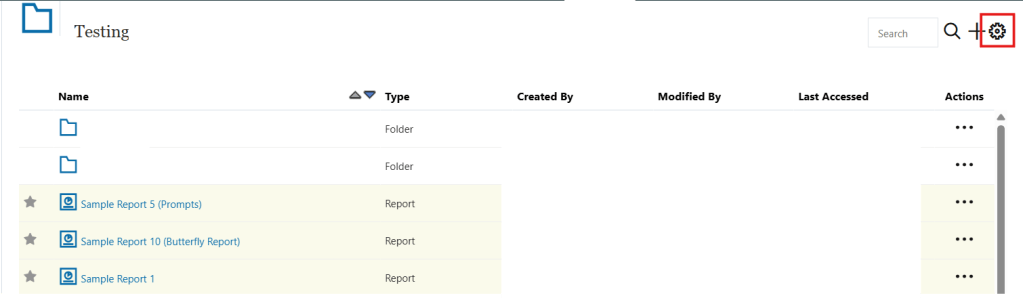
Then select the Actions menu cog wheel at the top right of the screen,
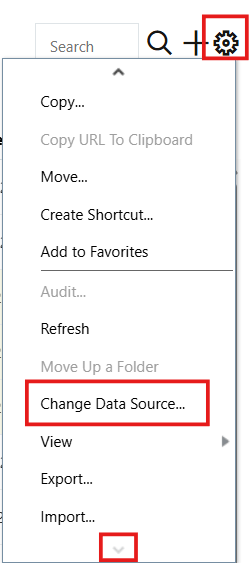
Next, scroll down the menu until you find the Change Data Source option. You will have to scroll beyond the first menu screen, pressing the down arrow button to see more options.
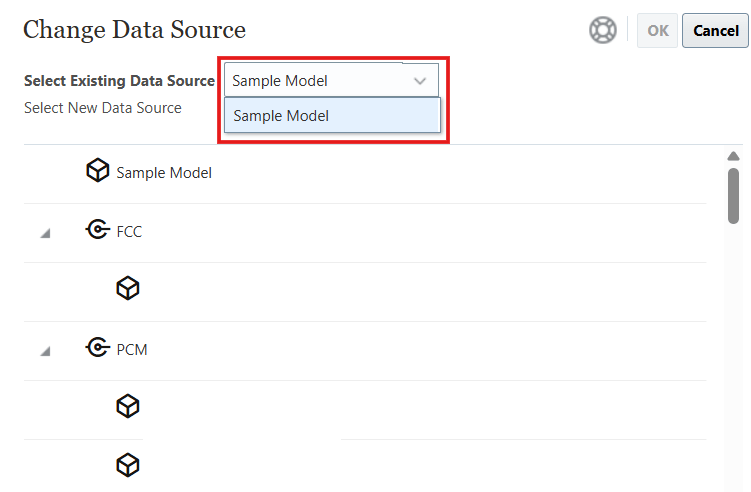
In the “Select Existing Data Source” drop-down at the top of the new window that opens, you should see a list of all the data sources that belong to the selected list of Reports. The following screenshot shows when you have a single data source for all Reports:
And this is what it looks like when you have multiple data sources (<ahem> with some important private details blanked out):
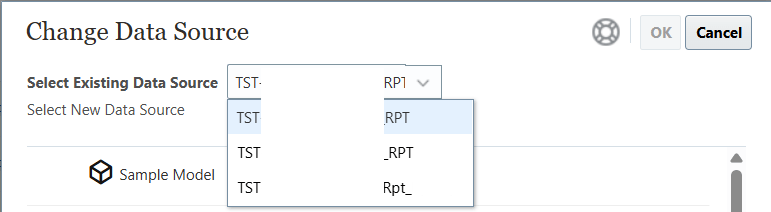
You’ll need to select from the drop-down list which data source you’re attempting to change
Next, highlight the data source in the list below that you wish to switch to. You need to select a cube/database and not the parent application if you’re using EPM. In the screenshot below, I have a Planning application with four data sources, so I selected the last one.
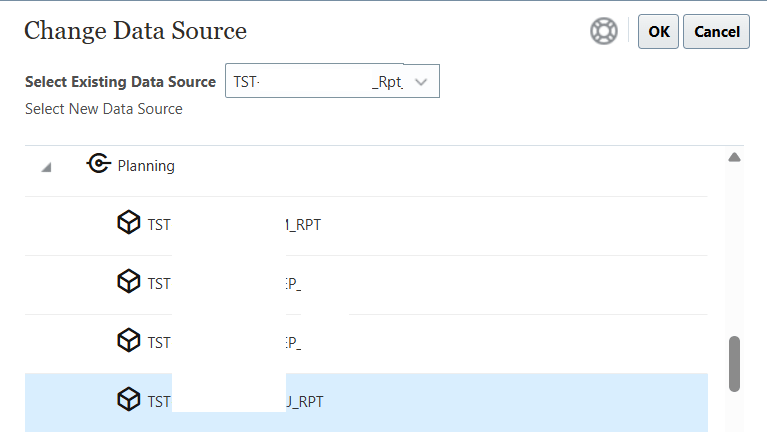
Then press OK.
It may take a little bit of time for the data source to switch, like up to a minute. Anything longer than that (and that can be reproduced using the same set of steps) might indicate an underlying issue with your environment. I say this because I have personally encountered a problem with this feature once before and a patch had to be applied by Oracle. It was a weirdly unique situation at one customer’s environment that got rectified within a couple of weeks. I haven’t seen that issue pop up again.
Sometimes complicating factors will cause this feature not to work. You’ll know because you’ll get nasty red error messages and the data source won’t actually change. I find this happens more often when there are Named POVs attached to the Report (which, to be honest, most of my customers don’t use). To get around this, you can edit the Named POV or delete it altogether if it’s not necessary. For other objects, the workaround is to edit the Report’s affected object individually and switch the data source manually, then fix the issue. If that doesn’t work, worst case scenario: create a new object in the same Report and rebuild it from scratch, using the previous object as a guide. Then delete the old one.
Once you’ve switched the first data source, you can keep going if you have multiple data sources in your selected list of Reports.
Finally, once you’re done with this task you really should take the time to open each Report to ensure there are no surprises. When switching data sources, it’s possible something will break, especially if the dimensionality differs from source to target. Things like references to non-existent dimensions in headers and footers are expected problems.
Remember: errors = end users can’t open the Report. Issues that make it to the woeful “error” classification must be resolved first.
Also note if your target data source can’t find a match on the exact same member names in your grid, the grid can reset and you will have to rebuild it from scratch. Not fun, but this is a consequence customers often forget about, then wonder why data source changes can result in unexpected (and costly) time and effort.
Regardless, I like this feature when I have to use it (usually when migrating Reports from Test to Prod) and it saves a bunch of time. What continues to impress me most about it is how it works like a find and replace. It seems to understand that not all data sources in all the Reports selected need to be changed at the same time and respects the exact one you want to pinpoint.
PSA: NR Connection & Data Source Naming Conventions
Side bar: if you’re astute, you’ll notice above from the sliver of the data source names that I’m able to show you that they look and feel similar. This is called a naming convention, and PSA: you need to be using naming conventions, even for NR connection and data source names. Otherwise, you attempt to change your data sources (or even build a Report) and you have no idea which one to select. Does everyone on your team know what epm11 points to? No! And…changing your data source en masse is not a great time to find out that you switched to the wrong target data source because you didn’t have all of your goofy names memorized…and now your Reports are all seriously broken.
Need a methodology? You can find out more about this in the next blog post. This one is already 3x longer than I had planned… 🙂
Enjoy!
 woman in epm
One thought on “Narrative Reporting Quick Tip: Changing Reports data sources en masse”