
Interested in GenAI for Narrative Reporting Reports? At this point, nearly every eligible customer should be able to turn this feature on if they so wish. Last time I checked, some government customers were not able to use this (due to certifications that Oracle did not have yet) but I believe this is changing. Note that in order to be able to use GenAI in NR, you’ll need an enterprise Oracle EPM Cloud license as well as a NR environment (vs. the application deployment version of Reports).
Note: if you can’t enable the below option in your NR Test environment, log an Oracle SR to see if it’s possible to turn it on for your domain/environment.
Customers and strangers reach out to me often to ask about GenAI. Is Narrative Reporting ready? What can I do with it?
In a nutshell, as of June 2026 (when I wrote this post), my professional opinion is that Narrative Reporting GenAI is still in its infancy. But it’s more version 2 than version 1 now. Yes, they are progressing the features every year. But I don’t feel it’s where customers want it to be just yet.
But it’s coming. Give it more time. And if this is a direction you plan to go, turn it on in your Test NR environment and play with it. Get a feel for it, what you can customize on the outputs, and how well it works today. It’s only going to get better.
But this post isn’t about what GenAI is or isn’t in Narrative Reporting. We’re just going to just at how to turn it on.
Aside: do not turn on GenAI in your NR Production environment first. If you’re following proper IT protocols, you should have at least 2 environments for NR: Test and Prod. If you want to play with it, turn it on in Test and explore it there. To be honest, there may not be a huge risk, but I’m not fully educated on the backend of Oracle AI, so I don’t know what I don’t know. Plan well, be deliberate, and stay cautious! This is Cloud software.
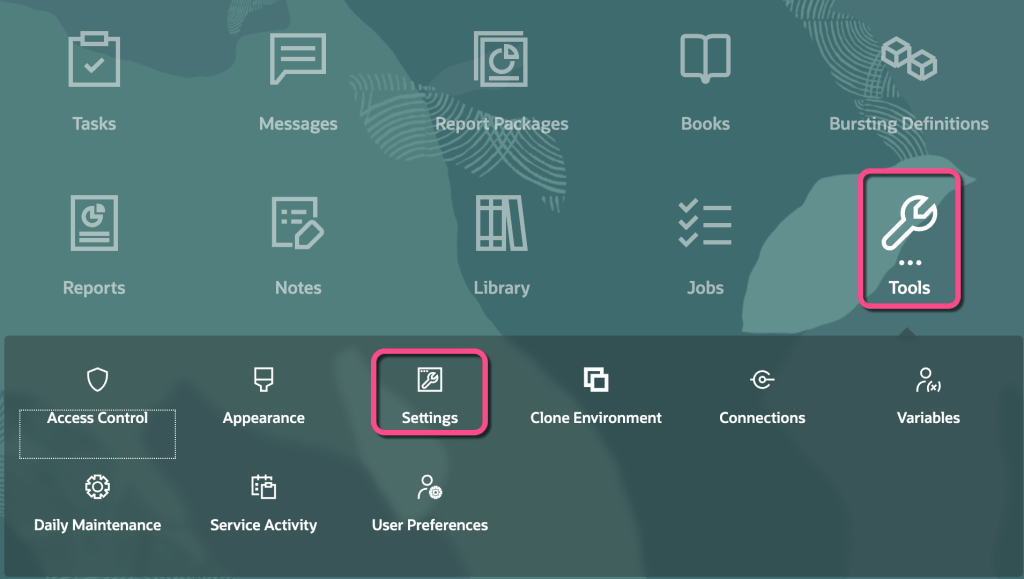
To find the NR GenAI setting, first navigate to the Home Screen then Tools | Settings:
On the left-hand side of the screen, find the Generative AI option and select it:
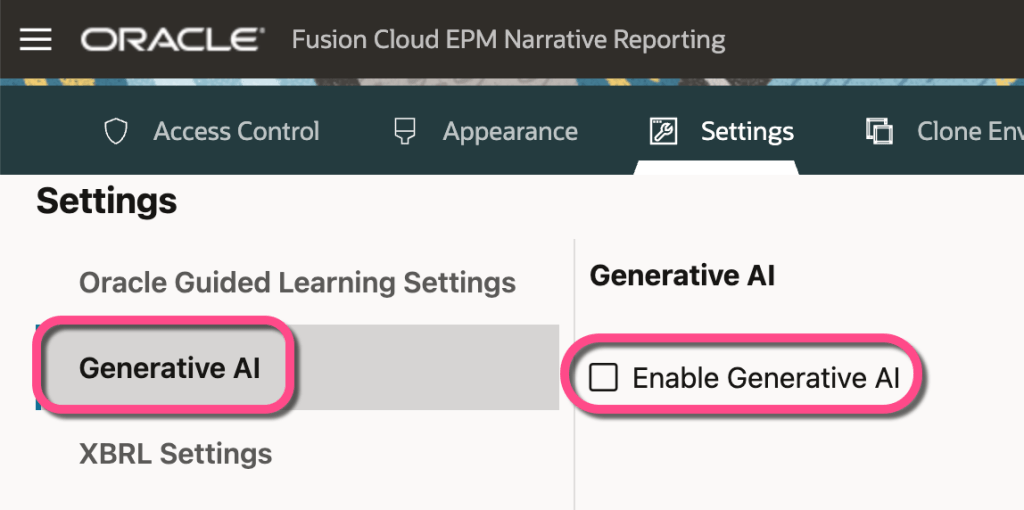
Now you will see a checkbox to Enable Generative AI. Check it. Then press Save in the upper right-hand corner of the screen.
That’s it!
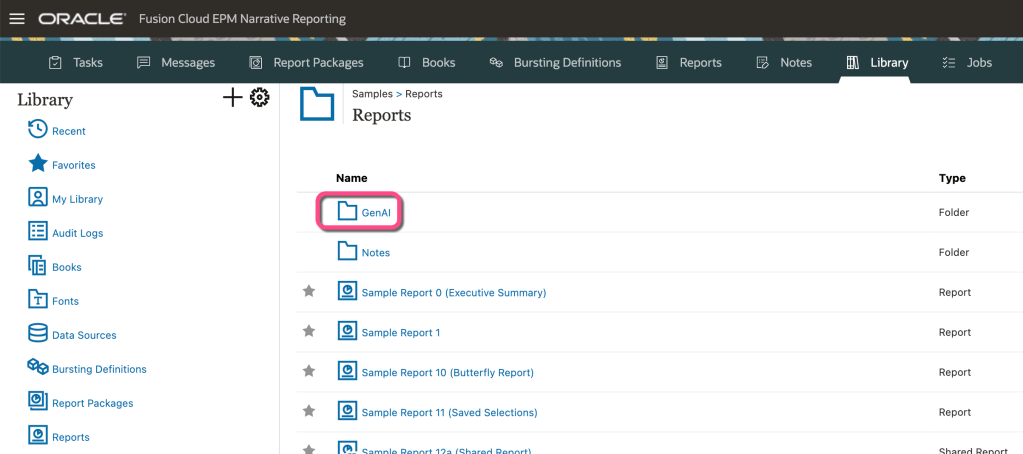
There are multiple sample objects in the Samples library that you can peruse, but note they won’t work until you enable GenAI. Once you’ve deployed the Samples library, you can find them in the Samples | Reports | GenAI folder:
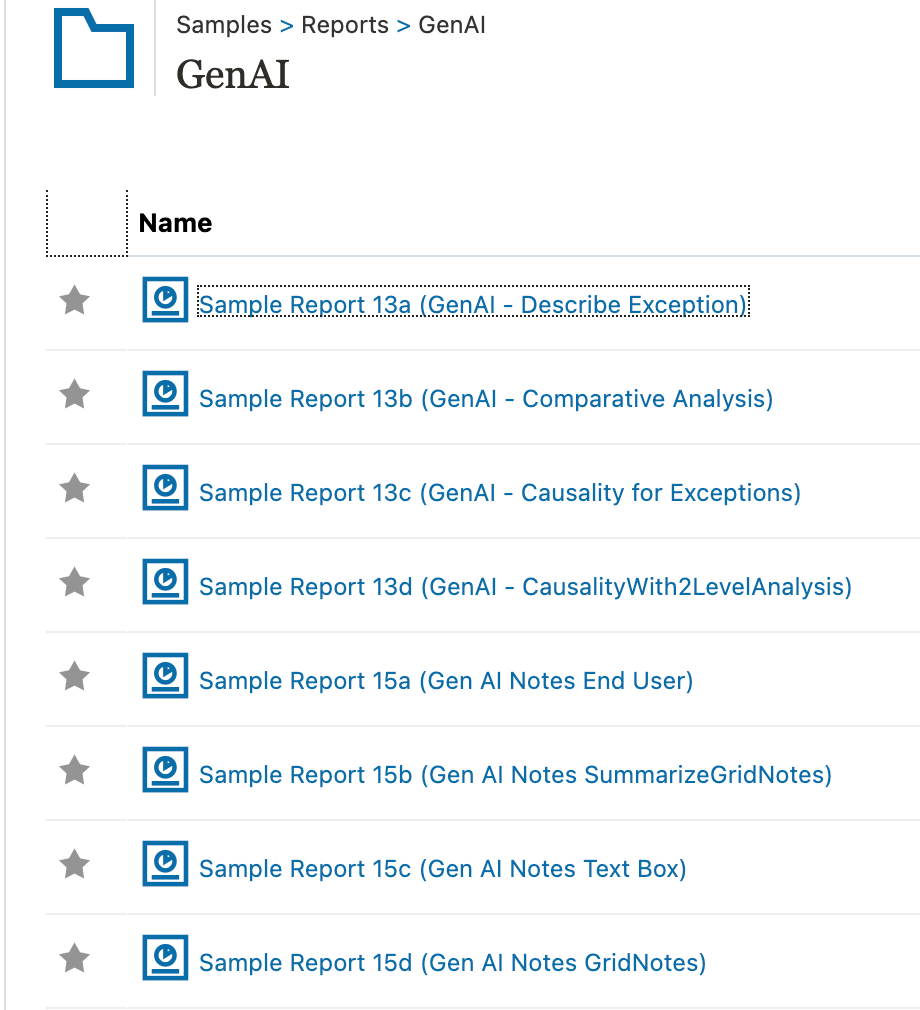
In there, you’ll find a handful of reports that you can play with and deconstruct:
Cheers!

