
When using the Narrative Reporting tool, there are at least 2 reasons why you would care about reporting fonts, font files, and uploading them to your many environments.
- Your company uses a special or custom font that is not already installed to Oracle NR/EPM application pods
- You are using any font on any report
^^ Yes, that second one sounds a little tongue-in-cheek, but it’s not. It’s real. If you don’t believe me, read the top part of Oracle’s documentation on the topic.
Seems strange, right? Why should you have to manage fonts in a system that is meant to use fonts? But you’re forgetting one thing. The most common fonts we take for granted in software programs like Microsoft Office are not owned by Oracle. In fact, many are not even owned by Microsoft – they’re licensed.
In addition, here’s the behind-the-scenes logic in a nutshell. When people use either the Reports or Report Packages tools, the resultant report objects are rendered over the web. How does the web know which actual font file you want to use to display your report? And does your font file look *exactly* like the fonts that Oracle already has installed? The software does its best to match them up, but there may be variances.
Enter the additional administration step of uploading the fonts that you use or plan to use. Because you use special ones. Or because you want your report output to look as optimized and pretty as it should.
Aside: there is legalese around all of this. Proof from the Oracle documentation (and posted without comment 😀 ):

So…how do you know where to upload the font files? Where do you source them from? And what font files do you need to upload?
I’ll answer the above questions out of order based on easiest response to hardest.
Where do you source font files from?
Read the above legalese screenshot and discern from that what you will. I will say that in every case where my customer has used custom/special/uncommon fonts, I’ve been able to obtain the font files directly from their marketing/corporate branding department. And they’ve had a license for them already.
You’re on your own for the rest. And yes, it is recommended that you have font files (and licenses) for common fonts like Arial, Times New Roman, Calibri, etc.
What font files do you need to upload?
Any special fonts that Oracle doesn’t have already in their software.
Any custom fonts that your company expects to use in reporting. (And yes, I’ve been to one customer where they had their own proprietary font so…this is a thing!)
Any fonts that are used for special characters (like bullet points and punctuation, etc.).
Like, any font. Any font that you are using or plan to use.
I would recommend the following at a minimum, then tack on any others that you are expecting to use:
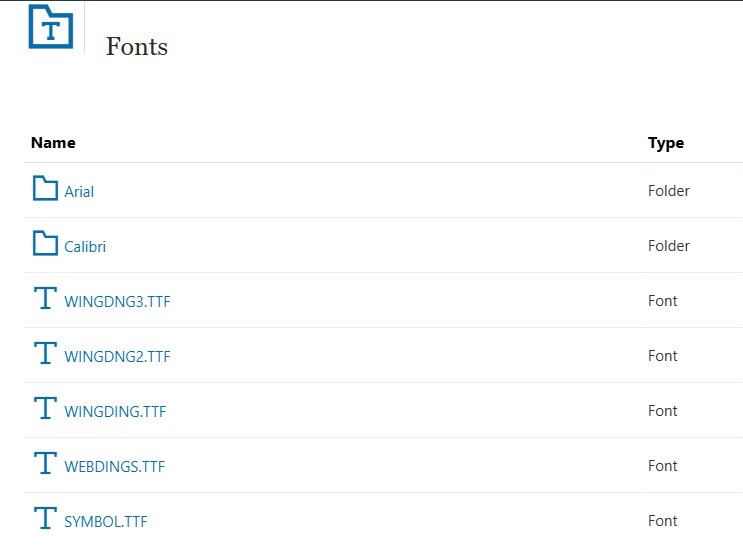
Only TrueType font file types (*.ttf) are supported. The .otf (“open” font file type) is not.
If you don’t know how font files work, they usually make one file per “variant.” So one for bold, one for italic, one for normal, etc. You can zip them up as an alternative to uploading the files one by one. You’ll know it worked when you can see them in your Fonts folder.
Which environments do you upload font files to?
From an Oracle EPM perspective:
First, you need to know that *anywhere* you are developing in the Reports tool will need font files uploaded to it. Meaning, if you have NR, Planning, and FCC, *and* you’re developing Reports in all 3 places, you will need to upload your font files to all 3 platforms. Otherwise, you run the risk of your report quality looking slightly different between tools. Some CFOs do not like that (and some will notice!).
However, if you have NR, Planning, and FCC and you’re only developing Reports in NR, then you only need to upload font files to NR. It’s ok if you’re sourcing data from FCC and Planning. What matters is where you’re developing the reports.
If you’re using Report Packages, just upload them to NR. You don’t have to do any special steps for both Reports and Report Packages–one upload serves both tools.
From a non-Oracle perspective:
Just remember that when you use Reports, if you’re using books or other extraneous objects where you could insert a Word doc as the cover page or TOC, you might also have to ensure your font files are installed to your local machine so the reporting objects you create there align to NR. You will need them in Microsoft Office, for instance, to ensure all your fonts are matchy matchy across tools.
I once worked for a customer where they used a very special font in their reporting. And yet it was not installed to my customer-supplied laptop. #fail I had to get that rectified early in order to ensure even my presentations were using their correct branding.
And if you’re using Report Packages and your Report Package type is Word or PPT or you’re using Excel embedded content, then you definitely need to ensure all necessary fonts are installed to your local machine so you can extend them to Office, etc., for those Report Package objects.
How do you upload those files to each environment? Keep reading.
How to upload font files in NR
It’s easy to upload font files to NR.
First, you need to be a Service Administrator in NR. Second, you need other have all your font files ready to upload.
Next, navigate to Library | Fonts.
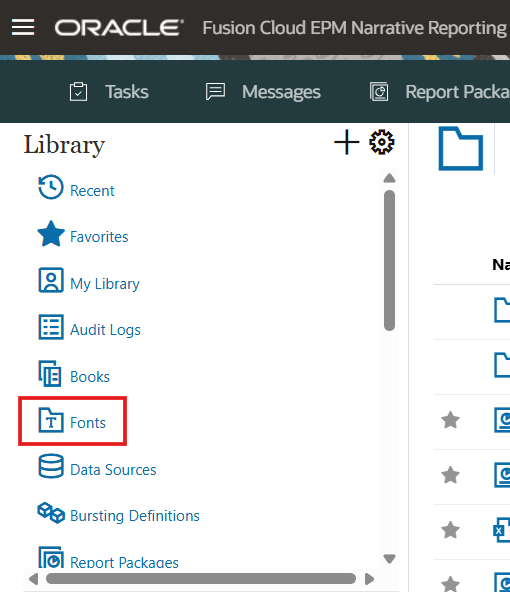
Then on the right side, use the plus icon to Upload File…
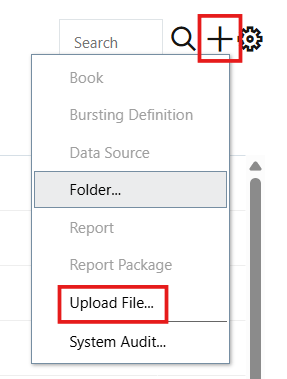
Finally, browse to your font files locally and upload them. You will know you’re successful once you refresh the Fonts folder in NR and can see them.
Again, please note you do not have to take separate steps to upload font files for Report Packages. This one upload process takes care of all reporting tools under the NR umbrella.
How to upload font files in EPM application deployments
If you’re developing Reports in an EPM application like Planning or FCC, you also need to upload fonts to those environments. However, getting there requires a few more clicks. And yes, you will need to be a Service Administrator in each respective technology in order to complete these steps.
First, have your font files ready for upload.
Next, navigate to Application | Settings. From there, you will find a Report Settings button on the right side:
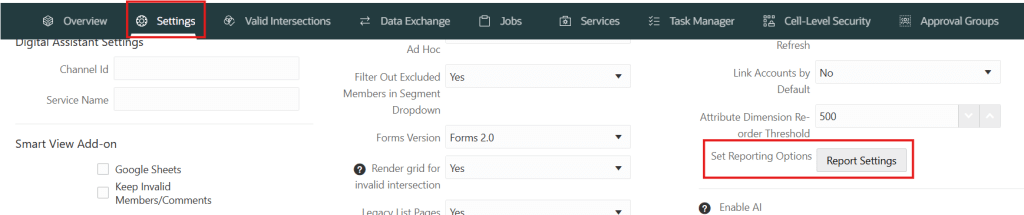
Once there, you will see one button to Manage Fonts:

Press it. From there, find the same plus icon as in NR and choose to Upload File…:
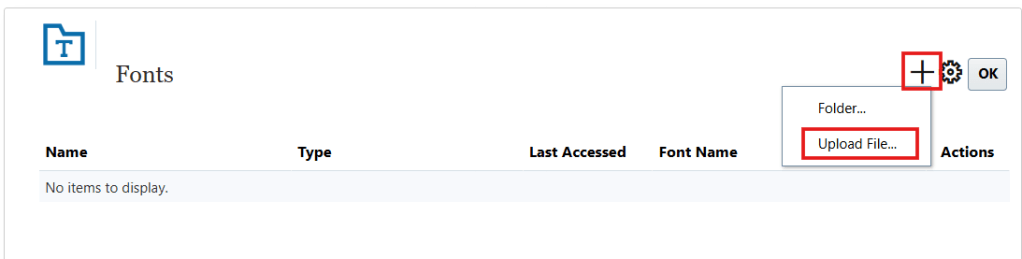
Then upload your fonts as described in the NR section, either as a zip or individual .ttf files.
Just like NR, you’ll know you’re successful when you see all necessary files populated in this Fonts folder.
Good luck with fonts! They do make a difference! 🙂

