
Although it’s been awhile since I’ve seen a customer do this, Narrative Reporting Reports has had the ability to create “butterfly” reports. These are reports where the row headers aren’t to the left (or right) of the report, but somewhere in the middle.
Here’s an example of how a butterfly report might look (Oracle’s Report Sample Report 10 (Butterfly Report)):
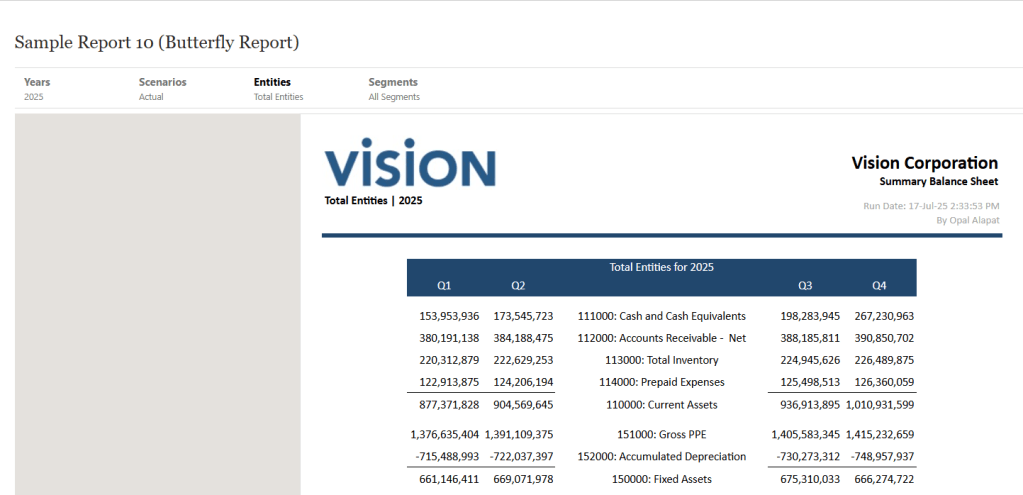
As you can see in the above example, the row headers aren’t to the left like traditional reports. Instead, they’re in the middle of the report. I don’t have a lot of customers who opt for this display format, but I do think it’s nice looking.
Also note that in editor mode, you won’t see the report display as it does to end users. The row headers are still to the left.
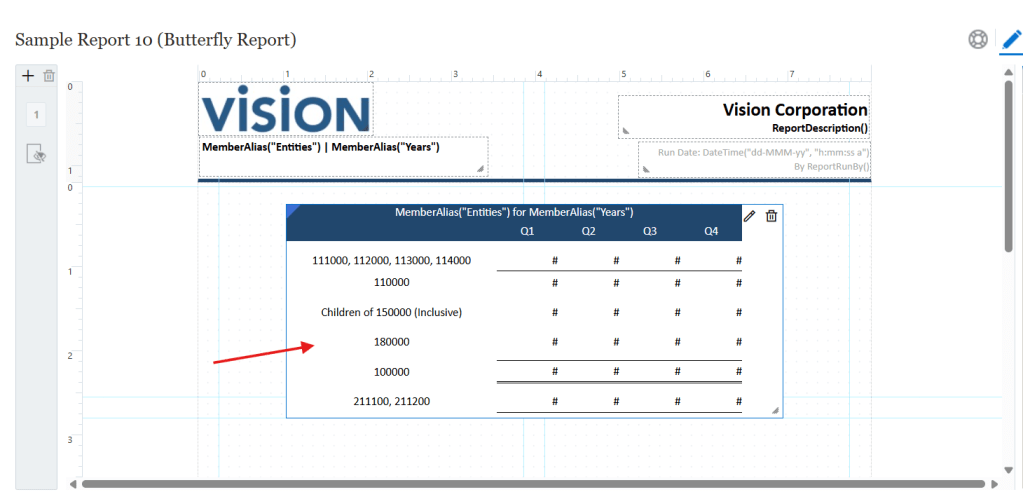
To set this up, it’s very easy.
First, design your report up front. Make sure you know exactly what your columns will look like and where the row headers will go. In most cases, you’ll want a symmetrical report. I usually see customers use this display format when they want to compare period over period or scenario over scenario data.
Next, go into grid editor mode and then the General properties tab. Under the Headings section, find the Row Headings Before property. Then choose from the drop-down which column you’d like the row headers to be positioned in front of.
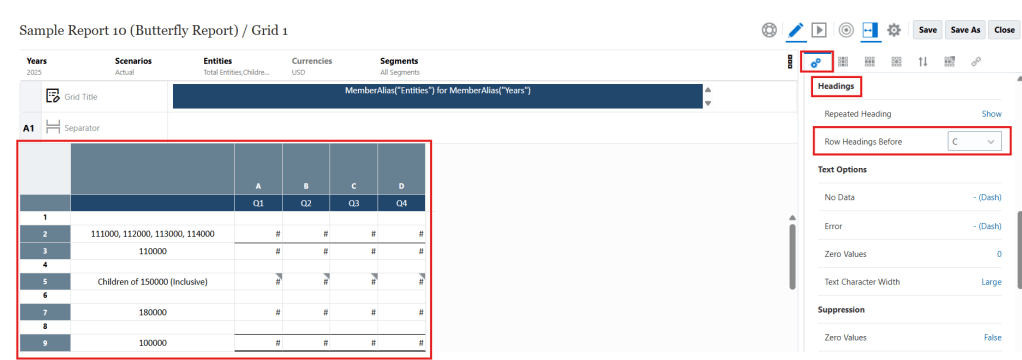
Finally, you’ll most likely want to center align the row header text so it looks pretty in the final display.
That’s it! Easy peasy!

