
Something I often forget about is the ability to customize the display of information in the NR library. When you go into the library, you’ll see a default set of columns with helpful information – name, file type, and last accessed date and time:
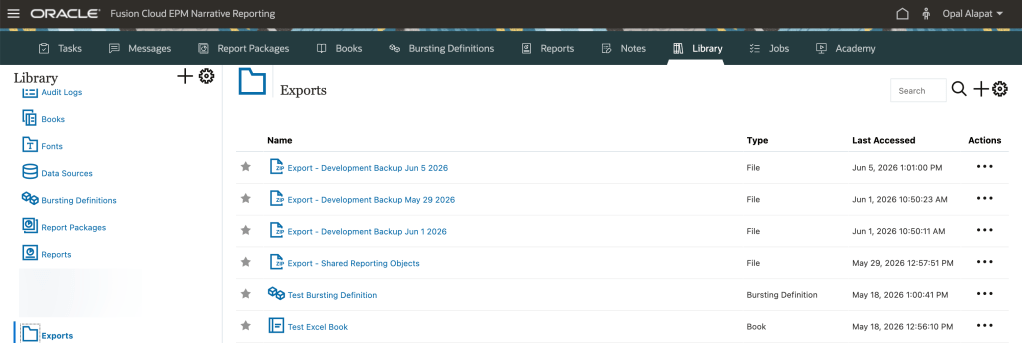
Did you know you can customize this view? And it will change just for you. You can modify this display to see additional “audit”-type information, like who last modified each object, who originally created each object, etc. While the information you can customize is limited, it’s helpful.
Note: Oracle mentions in the online documentation that each user’s options may be limited by their role and object security rights. I am an NR Service Administrator so I will see every option available in all the screen shots below.
To customize your view, navigate to Library. Pick a folder you have access to, other than Recents and Favorites. From the COG action menu, select the View property:
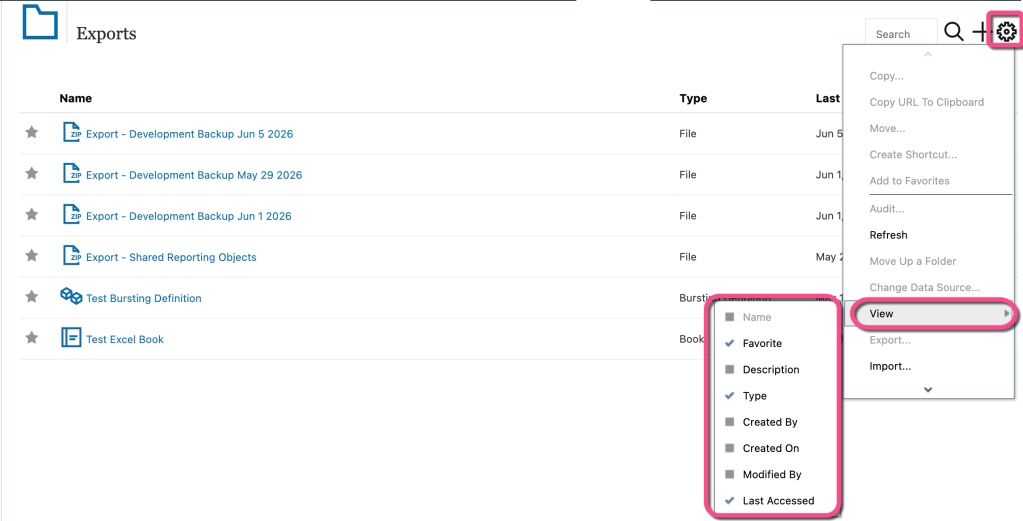
The options you see in this list are the ones you can choose to hide or show. They’re almost always the same, but may vary depending on which area of the library you’re in. Some unique areas were the Audit Logs, Fonts, and Report Packages, which makes sense because they have different types objects.
Notice that the ones checked above are already displayed in the default view of your library. Pick at least one new column. I often like to add Created By and Modified By. You will have to re-enter the View menu for each new column you wish to add/delete. Once you finish, take a look at all the new columns that appear in your display:
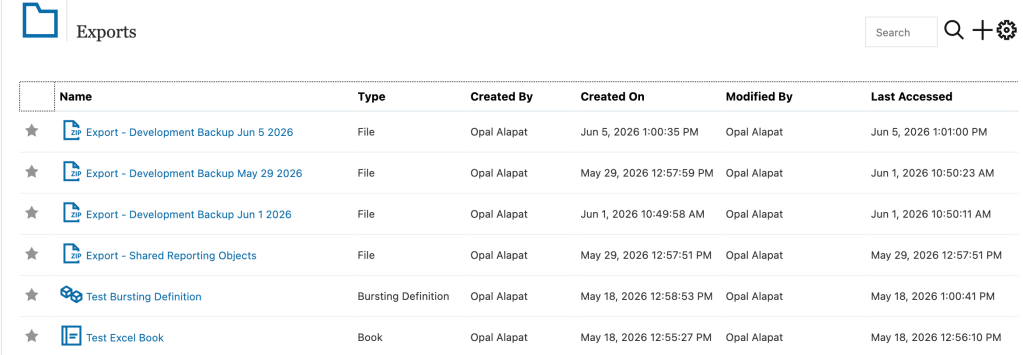
Note: this customization feature only applies to the NR environment. Meaning, you can’t do this in the app deployment of Reports like Planning or FCC.
This new look is already an improvement, but let’s say I want to move around the columns. You can do this by dragging and dropping them on top of each other:
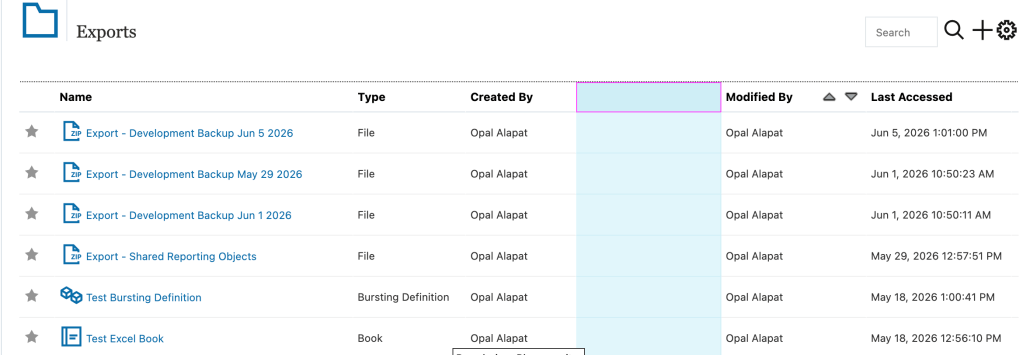
You might notice that the column widths aren’t the best. You can resize them manually yourself. Unfortunately, you can’t permanently alter them. NR will decide what the proper width is and then automatically open up your view to that sizing every time.
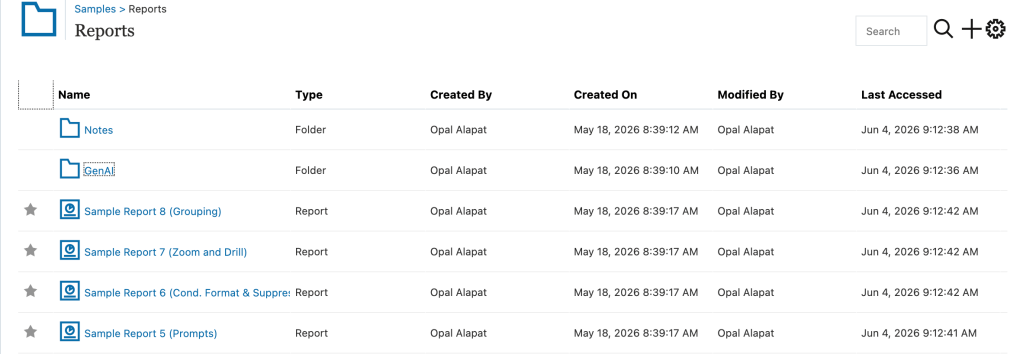
But one thing that is definitely cool is now just about all library views will take on your changes. I made the change to my Exports folder above but when I open up the Samples | Reports folder, I see the changes there, too:
Also cool is when you log out or close down your web browser, NR remembers your customization settings. So the next time you open up NR, you should see the same view.
Now if we can only get Oracle to add some additional information in here, like data source… 🙂

